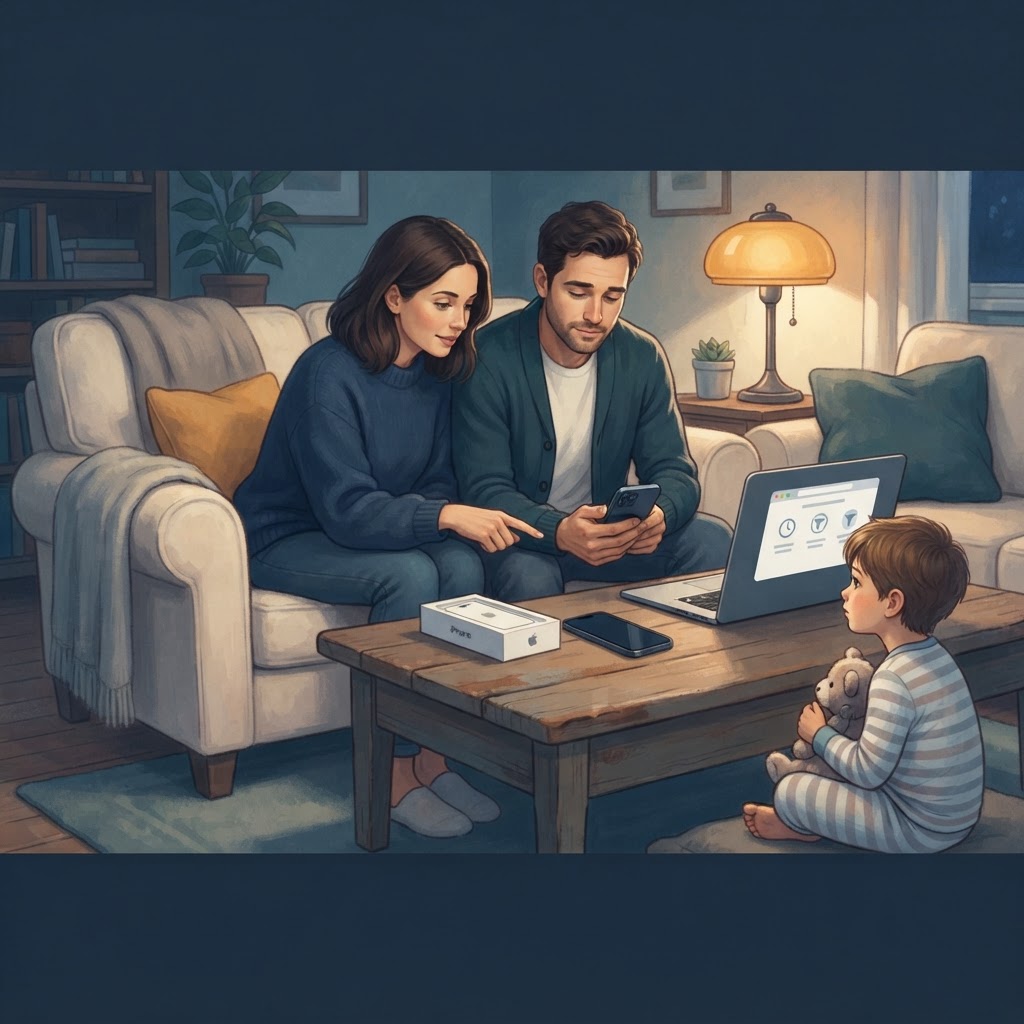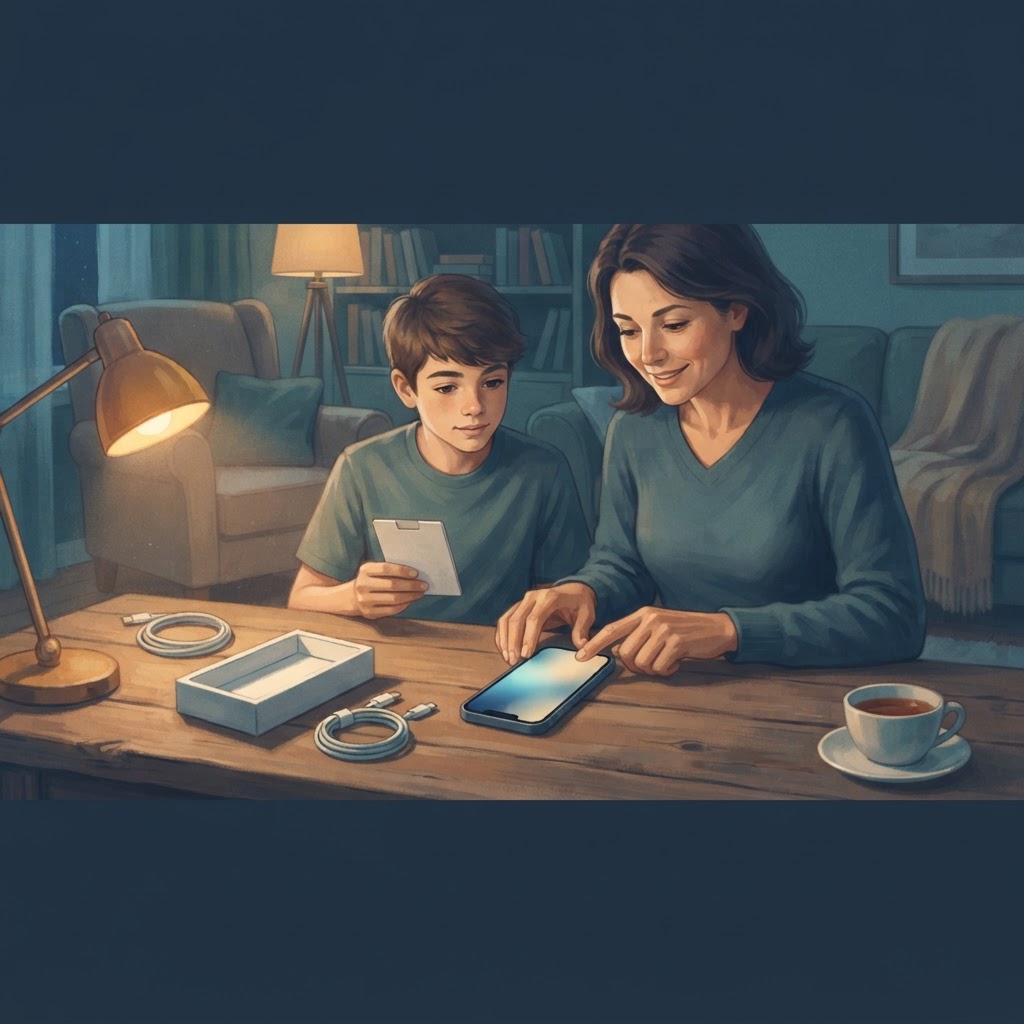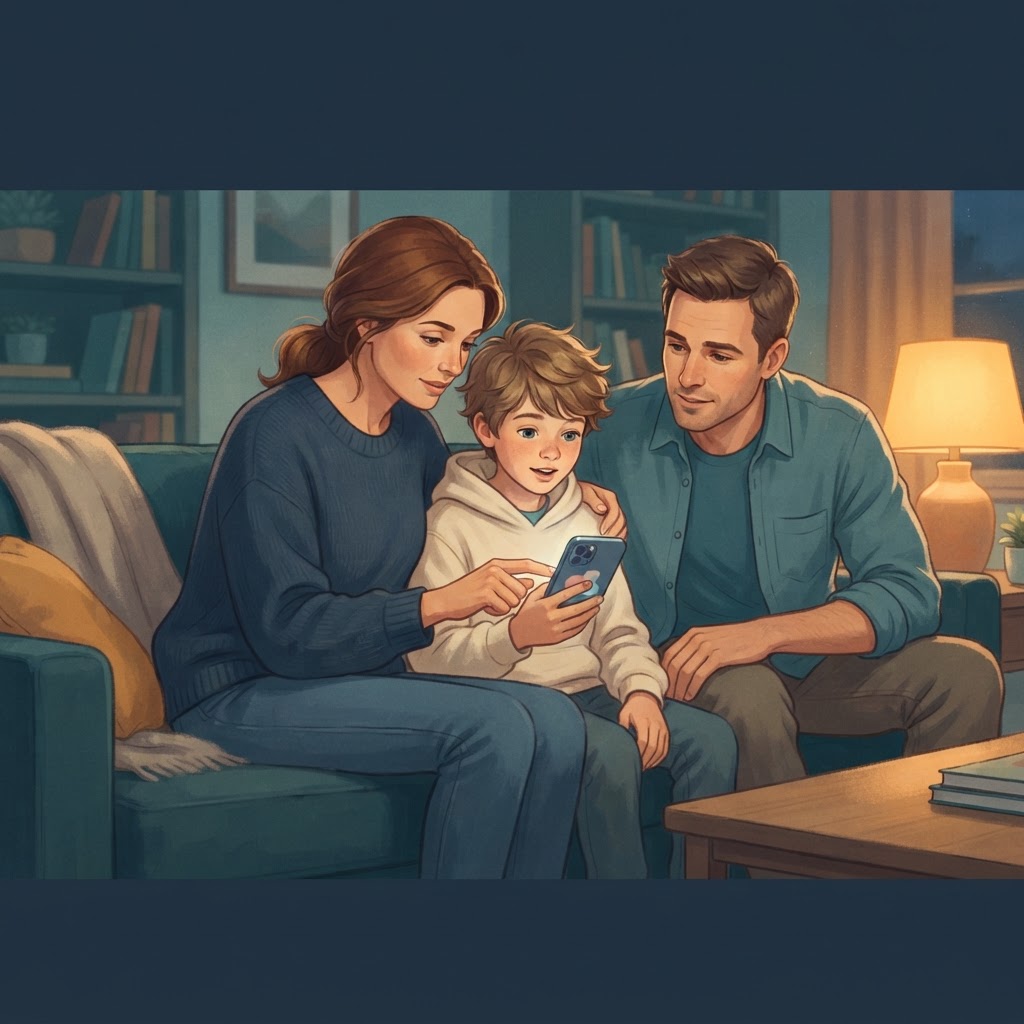
A lot of parents hand a 10-year-old an iPhone and then spend the next six months playing catch-up — turning things off after the fact, having awkward conversations, wondering how their kid found that video. The better move is to start locked down and open things up deliberately, as the child earns it and needs it. That's not being mean. It's being organized.
At 10, the realistic list of things a child genuinely needs from a phone is short: calling you, texting a small circle of family members, maybe two or three games, and an alarm clock. Everything else is optional — and optional means it can wait.
What a 10-Year-Old Actually Needs From a Phone
Before you configure anything, write down the actual use cases. For most 10-year-olds that list looks something like this:
- Call a parent or grandparent
- Text a sibling or one close family friend
- Play one or two games you've already reviewed
- Use a timer or alarm
- Maybe a camera
Notice what's not on that list: a browser with open access, social media, YouTube, the App Store with a one-tap download, or iMessage open to anyone who has the number. Those things aren't forbidden forever — they're just not needed yet, and leaving them open by default creates problems you'll be solving for months.
Keeping that list in front of you while you work through the settings will help you resist the temptation to unlock "just one more thing" during setup.
A Child Account, Not a Shared Apple Account
Knowing how to set up an iPhone for a 10 year old properly starts before you touch the device itself. The single most important structural decision is making sure the child has their own Apple Account (Apple's term for what used to be called an Apple ID) under your Family Sharing group — not a shared account, and not your account.
A shared account means your purchases, your iCloud data, and your payment method are all accessible to whoever holds the phone. A child account under Family Sharing means you control app purchases, you can see Screen Time reports, and you stay the family organizer with full authority over the setup.
To create a child account, go to your own iPhone's Settings, tap your name at the top, then find the Family Sharing section. From there you can add a child and create an Apple Account on their behalf. Because your child is under 13, Apple requires you to verify parental consent during the process — have a payment method ready for the confirmation charge (Apple refunds it immediately; it's just a verification step).
Once the child account exists, sign into it on the child's iPhone during initial setup. Do not skip this step by using a convenience account you created earlier — it's worth doing correctly once.
Contacts: Keep the Circle Small
After sign-in, go into Screen Time (Settings → Screen Time) and look for communication limits. This feature lets you specify who the child can call and message. For a 10-year-old, the right answer is "contacts only" — meaning only people already saved in the Contacts app can reach them, and the child can only reach those people.
Then open the Contacts app and add only the people who should be there: parents, one or two grandparents, a sibling, maybe one trusted family friend. That's the whole list for now.
Unknown numbers will still be able to call — iOS doesn't block incoming calls from strangers entirely — but you can enable Silence Unknown Callers in Settings under the Phone section. With that on, any number not in Contacts goes straight to voicemail. The child won't hear it ring, and you can review voicemails together.
Five Apps to Start, With App Restrictions Behind Them
A clean home screen for a 10-year-old might have Phone, Messages, Camera, Clock, and one or two games you've already downloaded and reviewed. That's it. Everything else can be tucked away or restricted outright.
To prevent new apps from being installed without your approval, go to Screen Time → Content & Privacy Restrictions and find the section that controls installing apps. Turn off the ability to install apps independently. When the child wants something new, they'll send you a request through Screen Time's Ask to Buy feature, and you approve or decline from your own phone. This keeps the App Store from becoming a free-for-all.
For the apps you do allow, blocking specific apps from appearing at all is straightforward in Screen Time and worth doing for anything you don't want them stumbling into — the built-in Stocks app won't tempt a 10-year-old, but Safari might.
Content restrictions inside Screen Time also let you set an age rating for apps. Setting this to the equivalent of ages 9 and under will hide any app in the App Store above that rating. The child won't see it, can't search for it, and can't request it.
Web Filtering, Downtime, and the First Monthly Review
If you leave Safari available at all, turn on the web content filter inside Screen Time's content restrictions. The "Limit Adult Websites" option uses a combination of Apple's list and on-device filtering to block a broad category of explicit content. It's not perfect — no filter is — but it's a meaningful guardrail. For more control over exactly which sites are allowed or blocked, setting up website restrictions gives you a whitelist option where only specific sites you approve will load.
For a 10-year-old, the most defensible choice is to remove Safari entirely for now and add it back when the child is older and you've had some conversations about what they'll encounter online. Apparently a browser with no restrictions is basically a portal to anywhere, and 10 is a reasonable age to keep that door closed a little longer.
Downtime is Screen Time's scheduled off period — set it for after dinner and through the school day, and the phone becomes mostly a clock and a way to call you. Setting up Screen Time with downtime and app limits is worth reading in full before you finalize the schedule, because the order in which you configure things matters.
Set a Screen Time passcode that the child doesn't know. Without one, a curious 10-year-old can undo everything you've done in about four minutes.
The First Monthly Review
About four weeks in, sit down with the child and look at the Screen Time report together. Not as a gotcha — just as information. What did they use most? What did they want to do that they couldn't? That conversation is where you decide what, if anything, to unlock next. A short list of things to consider unlocking only when asked might look like this:
- Safari, with the whitelist filter active
- FaceTime with approved contacts
- A second game, after you've played it yourself
- The ability to add contacts, with your sign-off
- A music app with explicit content filtering on
None of these need to be on the phone at the start. Each one is a conversation, not a default.
Parental controls are guardrails, not a guarantee. A determined kid will find workarounds, and no configuration survives first contact with a school friend who has an unrestricted phone. What the setup does is reduce casual exposure, give you visibility into what's happening, and open a channel for ongoing conversations about why the limits are there.